Special offer - save up to 40% off on funnel kit.

| Limited time Deal:

01Day
23Hour
55Min
20Sec
New Widget

Restaurant Menu Widget for GHL Websites & Funnels

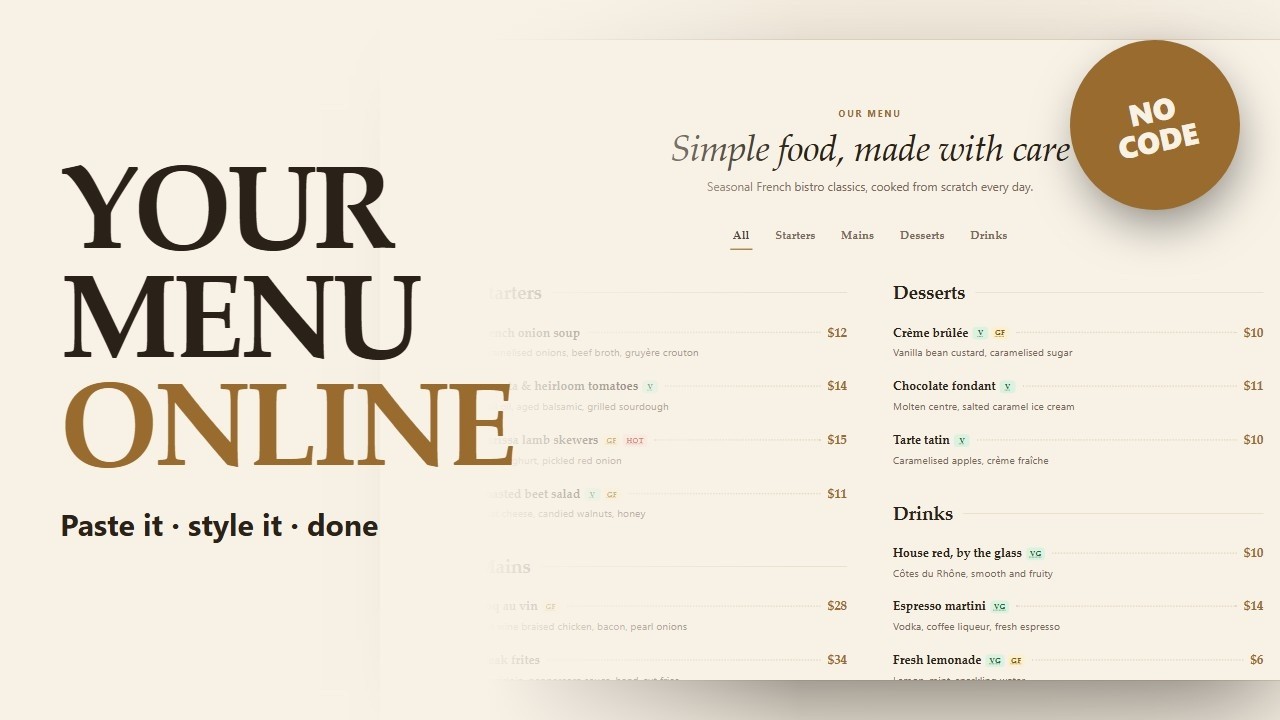
Create a professional digital menu for your restaurant or café. Organize food and drink categories, add dish images and prices, highlight dietary options, and choose from 6 flexible layouts. Design each element to match your brand without coding.

$10*
Install Widget Now

16 People are viewing this Right Now!

  • Available Now
  • Lifetime updates

At a Glance

Best For

  • Restaurants
  • Cafés and Coffee Shops
  • Bars and Pubs
  • Food Businesses

Alternatives

  • Static PDF Menus
  • Image-Based Food Menus
  • Traditional Printed Menus

Integration

GoHighLevel

Key Features

  • Unlimited Menu Categories
  • Food and Drink Item Listings
  • Dish Images and Pricing
  • Dietary & Allergen Badges
  • Featured Dish Labels
  • 6 Flexible Menu Layouts
  • Ready-Made Design Presets
  • Search and Category Filters
Restaurant Menu Widget | Create Beautiful Digital Menus | Pennine Technolabs

Make Your Restaurant Menu Easier to Explore

Static PDF menus and food images can make it difficult for customers to browse dishes, check prices, and find specific options, especially on mobile devices. These formats can also take extra time to update whenever there is a change in your menu.

Restaurant Menu Widget will let you create a digital menu so you can keep your food and beverage products all in one place. Add the images, descriptions, prices, and dietary information to the dishes and select the layout style that will make it easy for your customers to browse through them.

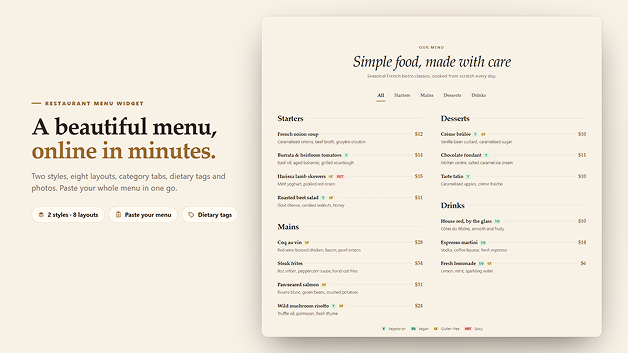
Organize Your Complete Menu in One Place

Prepare a clear digital menu to guide customers through the menu items. Create sections, include key item information, and highlight dishes to keep everyone's attention.

  • Unlimited Menu Categories: Divide your menu into different categories such as appetizers, main courses, desserts, drinks, daily specials, and more.
  • Detailed Menu Items: Add item names, descriptions, prices, and optional images to give customers a better understanding of each dish.
  • Dietary & Allergen Badges: Highlight options such as Vegetarian, Vegan, Gluten-Free, Spicy, and Nut-Free.
  • Featured Dish Labels: Give extra attention to popular items, recommended dishes, and Chef's Specials.
  • Easy Menu Reordering: Rearrange categories and individual items to organize your menu according to your preferences.
GHL Restaurant Menu Widget

Choose a Layout That Matches Your Restaurant

Serve food and beverages in a manner that reflects your restaurant's image. Choose from the various layouts and presets for design and build a menu that looks professional and is simple to browse.

  • List & Grid Layouts: Organize menu items into easy-to-browse lists and grids.
  • Cards & Split View: Use beautiful card or split layouts to display dishes with pictures and text.
  • Tabs Layout: Divide menu categories into separate Tabs to facilitate visitors navigating through various sections.
  • Menu Board: Show your offerings in a menu-board format that allows your customers to see what is available.
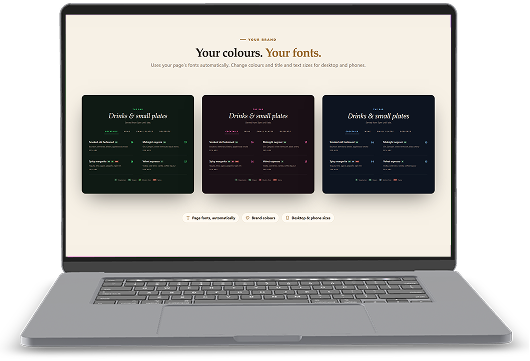
  • Ready-Made Design Presets: Use pre-designed styles and adjust colors, fonts, space, borders, and button styles.

Make Your Digital Menu More Interactive

Give customers a convenient way to browse your offerings and take action directly from your website. Use helpful menu tools and customization options to create a better browsing experience across devices.

  • Search & Category Filters: Give visitors the ability to search for specific dishes or to filter the menu categories they prefer.
  • Call-to-Action Buttons: Support customers toward the next step with buttons like Order Now, Reserve Table, and Call Us.
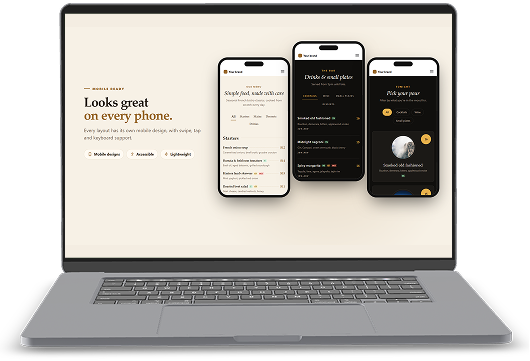
  • Responsive Menu Design: Show your menu across desktop, tablet, and mobile screens in different layouts for different screen sizes.
  • Device Visibility Controls: Choose where your menu appears based on the device being used.
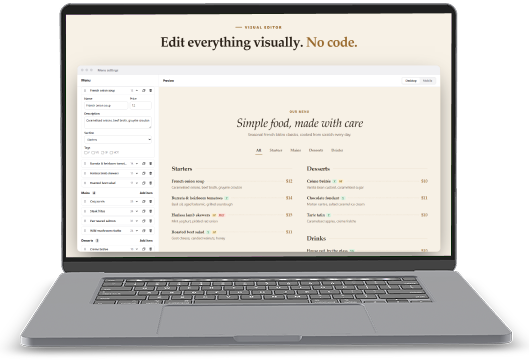
  • Live Preview Editor: See your changes to the menu before publishing and see how your design looks.
GHL Restaurant Menu Widget
Setup Process

Set Up Your Digital Restaurant Menu in 4 Simple Steps

Add your offerings, customize the design, and publish your menu with ease.

  1. Step : 1

    Add the Restaurant Menu Widget

    Place the widget on your website or funnel page and open its settings to start creating your digital menu.

  2. Step : 2

    Create Your Menu Categories

    Add categories for different food and drink options. Add item names, descriptions, prices, pictures, dietary badges, etc.

  3. Step : 3

    Choose a Layout and Customize

    Choose from 6 menu layouts and pre-made presets. Change colors, fonts, spacing, themes, button styles, and more to align with your restaurant's branding.

  4. Step : 4

    Preview and Publish

    Check your menu on desktop, tablet, and mobile. Make any final changes and publish it on your website or funnel.

What Our Clients Say!

Looking for the right tools to improve your business website? Pennine Technolabs brings practical solutions that help businesses create better digital experiences. Our Reviews Speak Louder!!

5 out of 5 stars

I had a fantastic experience! They were incredibly easy to deal with and always quick to respond and very efficient. The entire process was smooth and hassle-free, making everything so much easier. I highly recommend their services to any Australians looking for a reliable and responsive team.

Jack Fricker

Agency Owner
5 out of 5 stars

We had an amazing experience with Pennine, their professional and knowledgeable team delivered beyond our expectations. They understood our requirements perfectly and provided innovative solutions. Highly recommended!

Colleen Nagle

Marketing Consultant
5 out of 5 stars

Pennine Technolabs created a magnificent ecommerce website for us that looks great and performs innocently. His team was professional, responsible and easy to work from beginning to end. We are really happy with the results and highly recommends their services!

Jorven Kael

Business Owner

FAQs on Restaurant Menu Widget

The Restaurant Menu Widget is a customisable digital menu solution which enables restaurants, cafés, bars and food businesses to showcase their food and drink products on websites and funnels. Easily organize categories, add dish details, and customize the menu without coding.

There are six layouts in Restaurant Menu Widget: List, Grid, Cards, Tabs, Menu Board, and Split View. You can also choose from ready-made design presets to match your website’s appearance.

Yes. You can add as many categories as you want for Appetizers, Main Courses, Desserts, Drinks, Specials, and Other Items. Categories and menu items can also be rearranged as you like.

Yes. All menu items are allowed to have names, descriptions, prices, and optional images. Dietary and allergen badges like Vegetarian, Vegan, Gluten-Free, Spicy, and Nut-Free are also available.

Yes. The widget includes search and category filters, which can help visitors find specific dishes and navigate various areas of your menu.

Ready to Give Your Customers a Better Digital Menu Experience?

Contact Us